
Please note: This guide is for the new Vault. If your Vault has a menu down the left side, see Viewing and tracking your camera locations in the Vault section.
The live map shows your cameras on a map, with a list of cameras beside it. Positions refresh every 15 seconds.
Who can use this: The live map is switched on by HALOS Support for organisations that include it. If you don't see Live map in the menu, ask your org admin to contact HALOS Support.
- Open Live ops, then Live map.
- Search for a serial number, user or team, or choose a team from the All teams list.
- The map shows cameras seen in the last hour. To include others, turn on Show inactive cameras.
- Click a camera on the map or in the list. A popup shows who has it, its serial number, team, whether it's online, when it was last seen and its address. If the camera is live, you can watch it in the popup.
- Switch between Map and Satellite, zoom, or go full screen with the map controls.
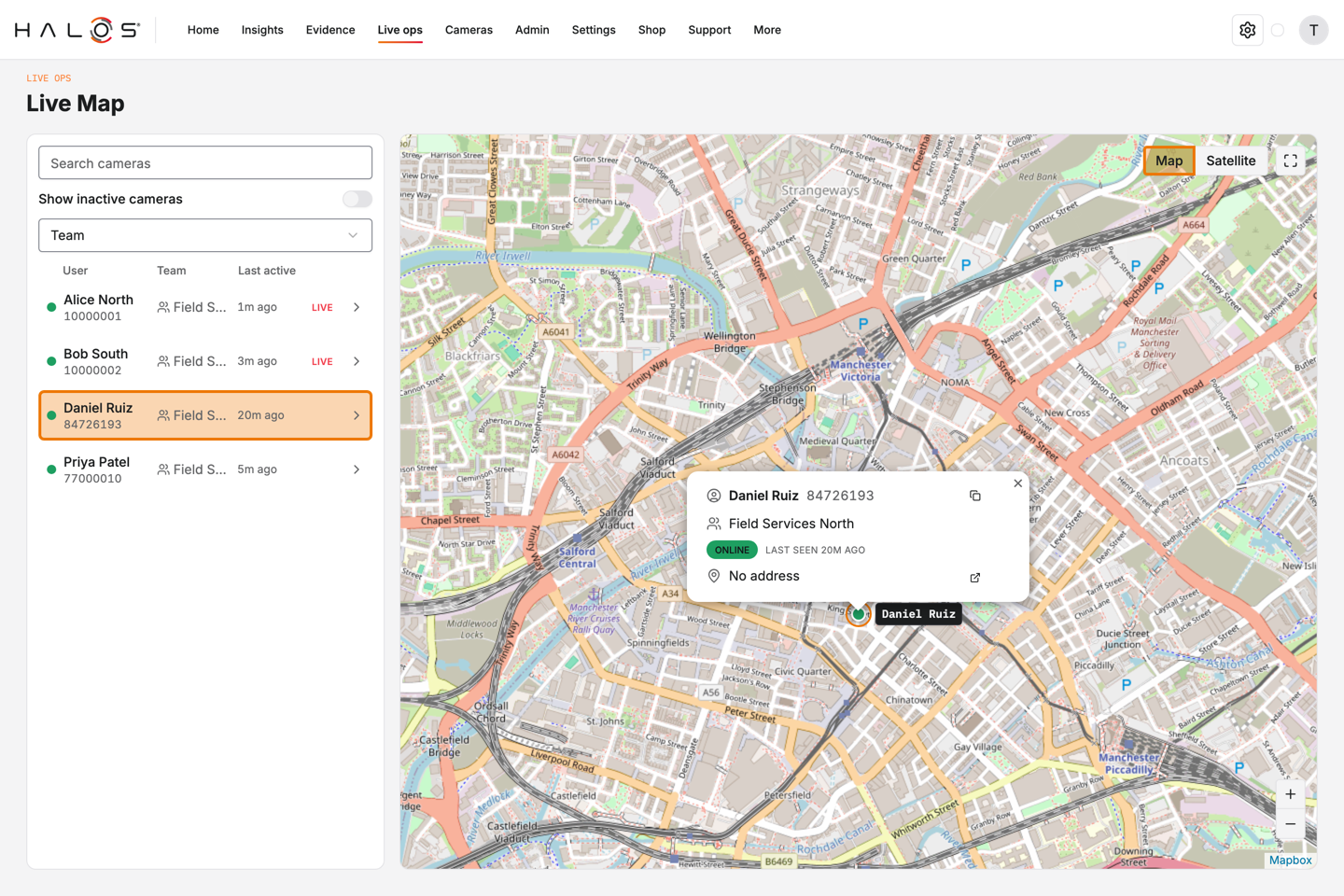
From the popup you can copy the camera's serial number or click Open in Google Maps. A camera with no GPS fix appears in the list without a pin.
Share a map view
Copy the link from your browser. It opens the same camera, filters and view for a colleague with access.
Please note: To see where a camera has been (journey history), use the live map in the classic Vault for now.