
Please note: This guide is for the new Vault. If your Vault has a menu down the left side, see Updating video metadata and marking as evidential in the Vault section.
Update a video's details
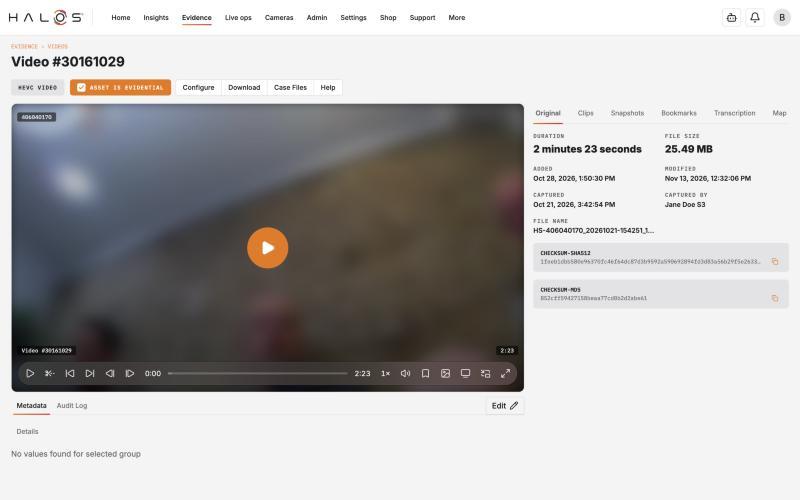
- Open Evidence, then Videos, and click the video.
- Click the Metadata tab under the player. Each metadata group has its own tab.
- Click Edit to change the fields, then click Save.
Keep a video as evidence
- On the video page, turn on Asset is evidential at the top of the page. In field service organisations this says Asset is held.
- Marking a video puts a retention hold on it, so it isn't deleted at its normal retention date.
To mark several videos at once, see Working with several videos at once.
Check how long a video will be kept
The retention badge on the video shows the days left before its retention date. It's hidden once a video is evidential. To take ownership of a video, open the Configure menu at the top of the page and choose Take ownership, if your role allows it.