Videos are stored in Vault for 30 days by default. After 30 days, videos are permanently deleted unless they have been marked as evidential. Marking a video as evidential ensures it is not deleted
Note: We’ve recently moved the location of the Evidential toggle to make it easier to access. It was previously located within the metadata section. Follow the updated instructions below
To mark a video as evidential:
- Log in to your account via the Halo Vault login page:
- UK Login: app.halovault.cam
- US Login: app.halovault.us
- Navigate to the Videos section from the sidebar menu
- Click on a video
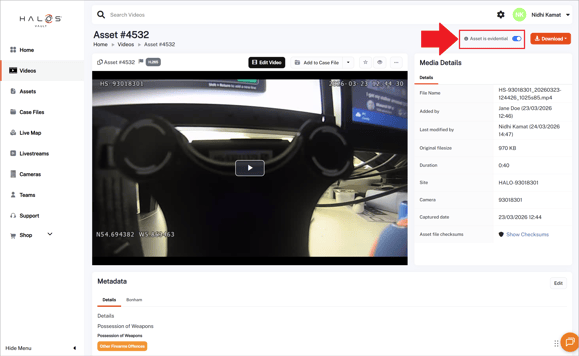
- In the top right corner of the video you're viewing, locate the Asset is evidential toggle (next to the Download button). In the new videos experience, you will see this just above the video player
- Turn on the toggle to mark the video as evidential
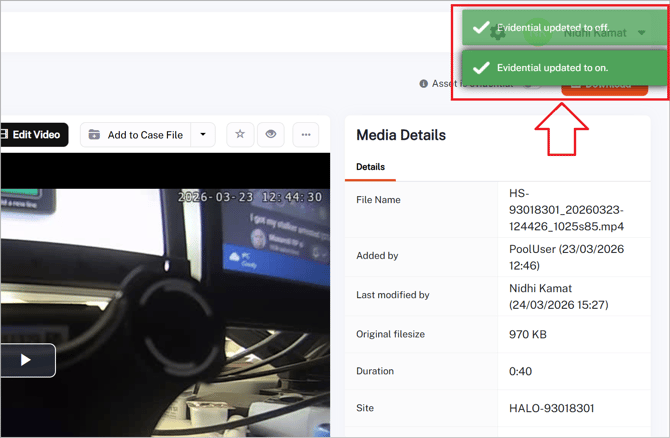
- You will see a toast notification in the top-right corner to confirm this update
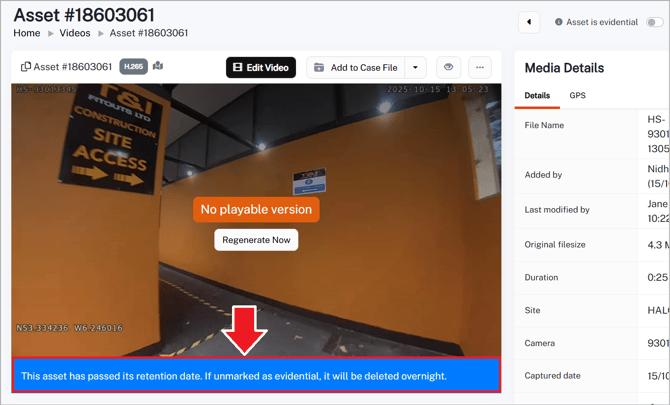
- Turn off the toggle to unmark the video as evidential. If an asset that was previously marked as evidential has passed its original retention date and is then unmarked, it is deleted overnight. The blue banner displayed under the asset will confirm this.
To update the metadata of your videos:
- Log in to your account via the Halo Vault login page:
- UK Login: app.halovault.cam
- US Login: app.halovault.us
- Navigate to the Videos section from the sidebar menu
- Click on the video of the metadata you want to update. This will open a more detailed view of the selected video
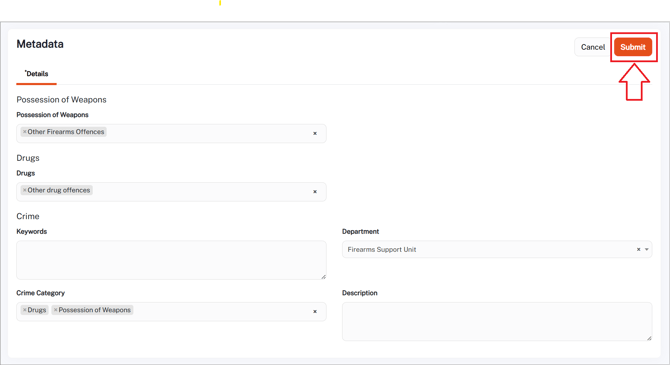
- Click on the Edit button on the top right corner of the Metadata section below the video
- Update the metadata as required
- Click the Submit button the save the changes