Please note: This guide is for the new Vault. If your Vault has a menu down the left side, see Sharing a case file internally in the Vault section.
- Open Evidence, then Case files, and click the case file.
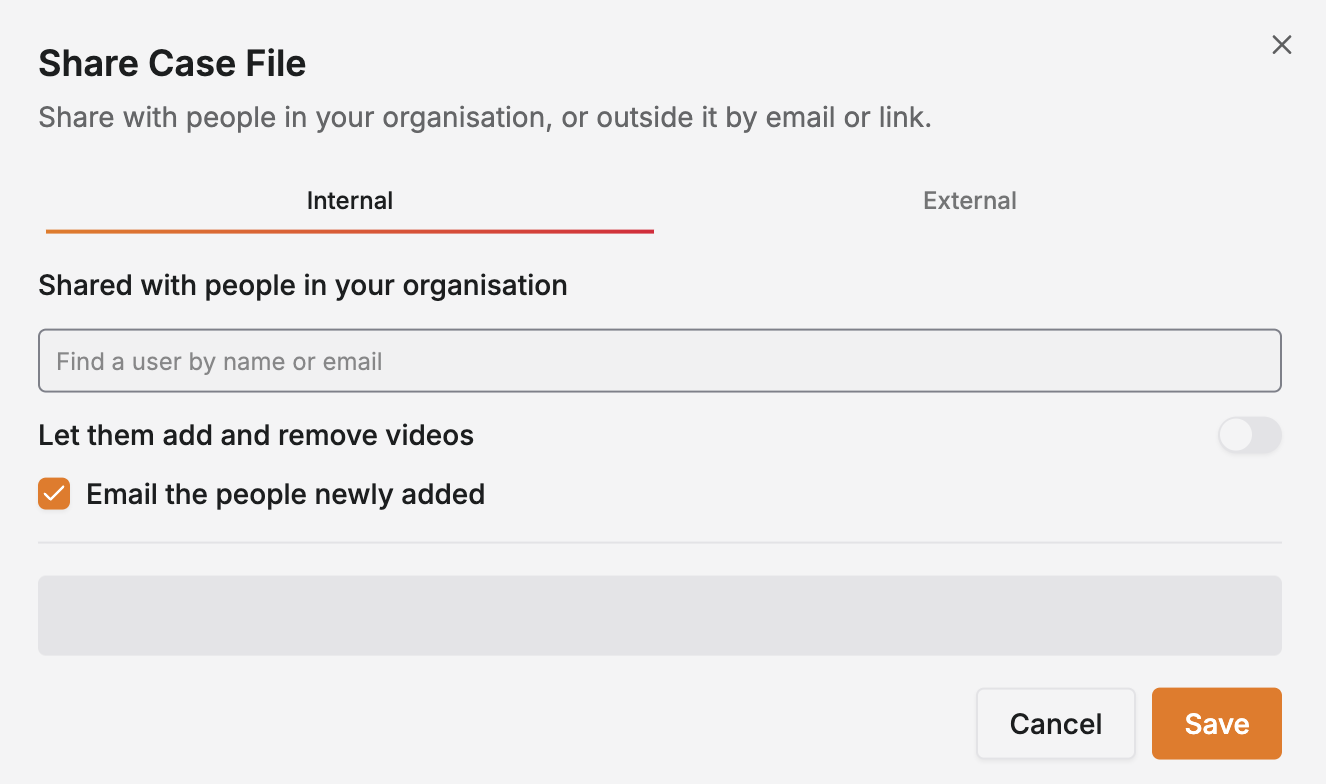
- Click Share. The Share Case File window opens on the Internal tab.
- In Find a user by name or email, start typing and pick the person from the list. You can only add people, not whole teams.
- To let them add and remove items, turn on Let them add and remove videos.
- Email the people newly added is ticked, so the people you add get an email. Untick it if you don't want to notify them.
- Click Save.
Please note: Vault only emails people when you first add them. To remind someone already on the list, contact them directly.
Who has viewed this shows who has opened the case file, how many times and when they last did.
Only the case file's owner and admins can share it.