Please note: This guide is for the new Vault. If your Vault has a menu down the left side, see Sharing a case file externally in the Vault section.
- Open Evidence, then Case files, and click the case file.
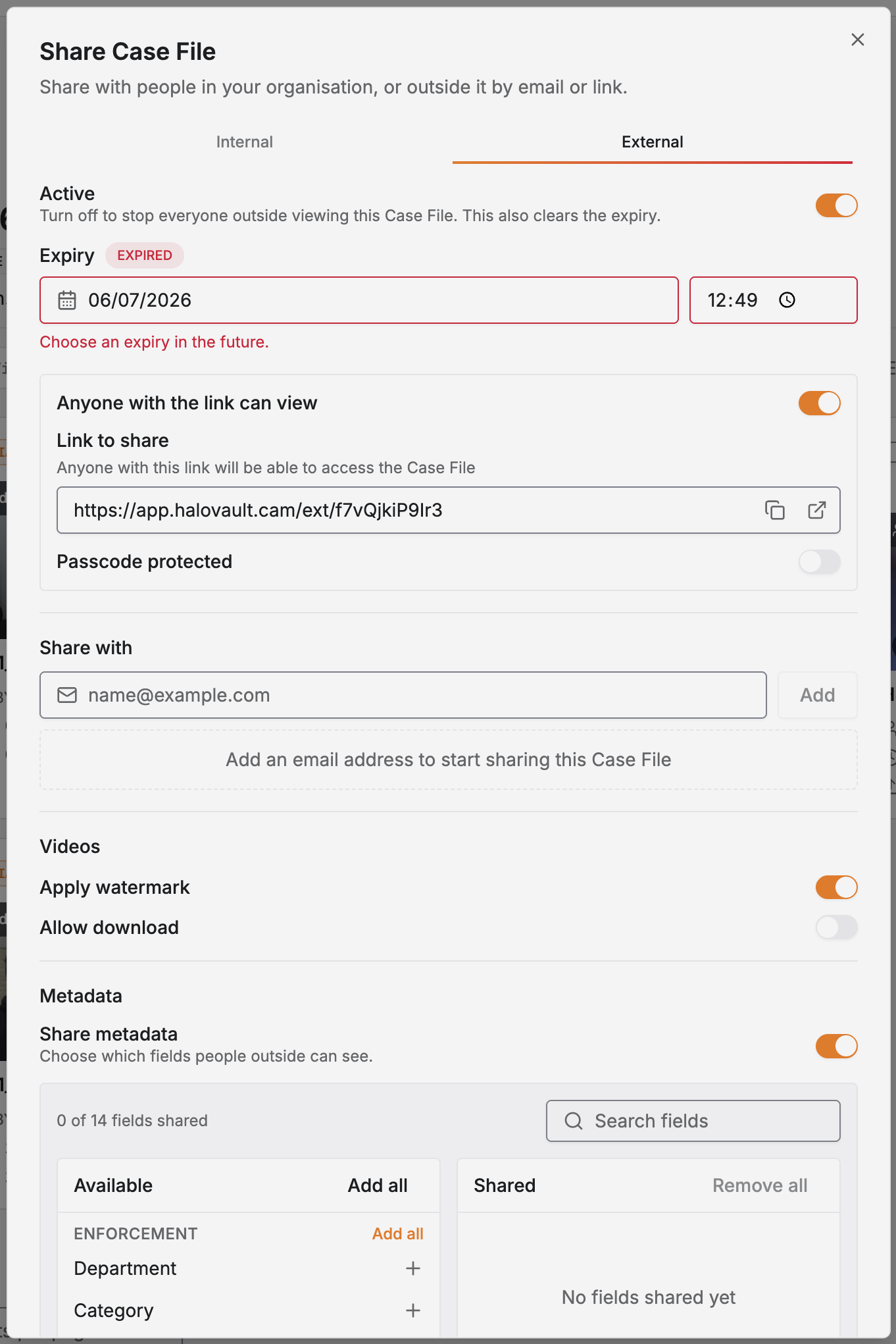
- Click Share, then the External tab.
- Turn on Active. Set the Expiry date and time. A new share lasts 30 days unless you change it, and the expiry must be in the future.
- Choose who can open it:
- Specific people: under Share with, type an email address and click Add. Repeat for each person.
- Anyone with the link: turn on Anyone with the link can view, then copy the link from Link to share. To ask for a passcode as well, turn on Passcode protected.
- Under Videos, choose whether to Apply watermark and Allow download.
- To share metadata, turn on Share metadata. Add fields one at a time with +, a whole group with that group's Add all, or every field with Add all. The fields you pick move to the Shared list.
- Scroll down and click Send at the bottom right. The people you added get an email with a link to the case file.
To stop everyone outside your organisation viewing it, turn off Active. This also clears the expiry.
If you turned on a passcode, Vault shows it once when you send. Copy it and give it to the recipients separately. If it's lost, click Generate new passcode. The old one stops working and nobody is emailed, so pass on the new one yourself.
Please note: People outside your organisation open the case file in the HALOS external viewer, which hasn't changed. See Sharing a case file externally in the Vault section for what they see.
Once a share is active, changing it shows Email everyone about these changes. Tick it to tell recipients. Shares that have expired move to the Expired view on the Shared Externally tab.