Please note: This guide is for the new Vault. If your Vault has a menu down the left side, see Which Vault am I using?
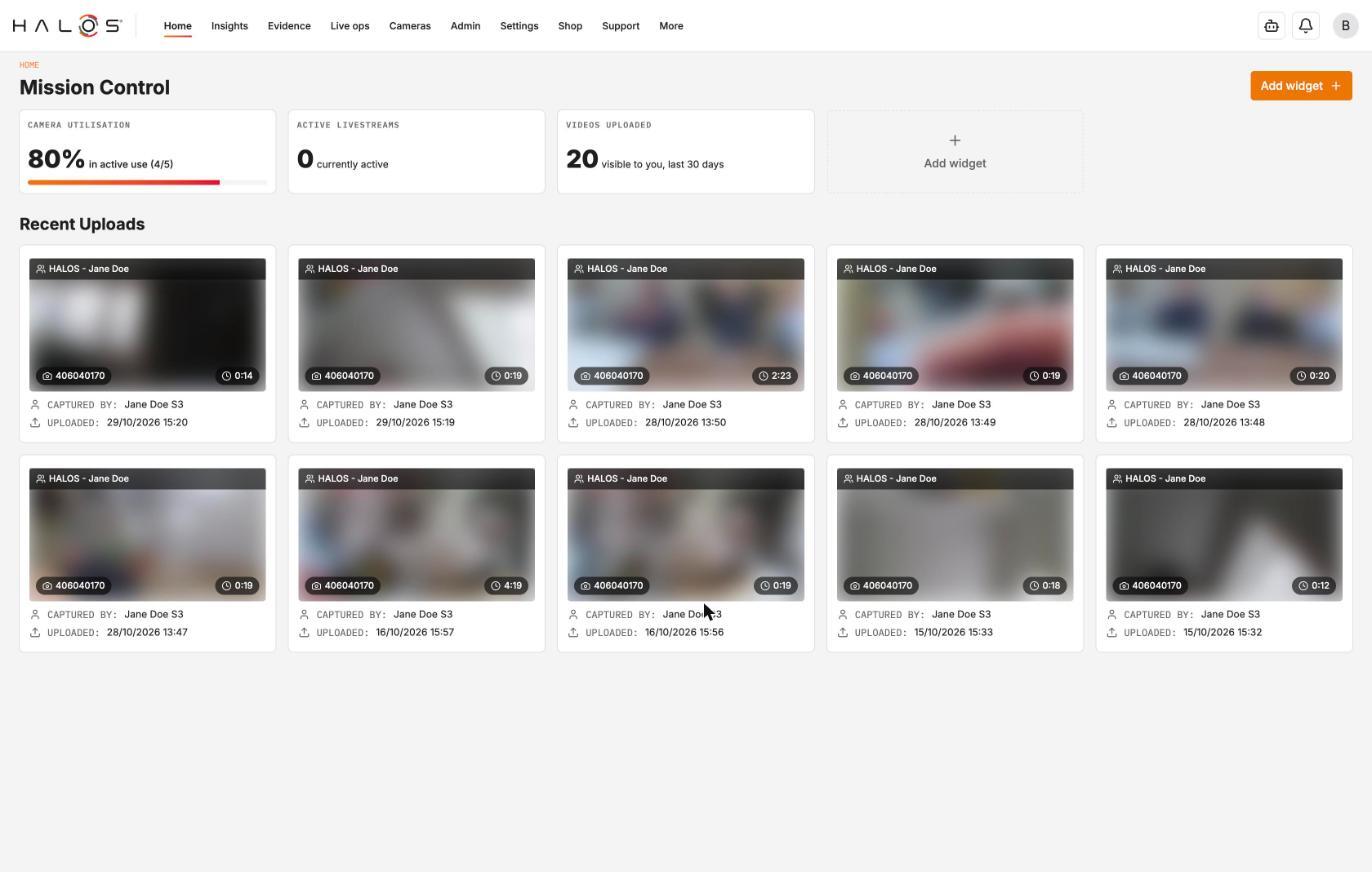
Mission Control is your home page in the new Vault. It shows the widgets you choose. Your layout is saved to your account, so you see the same home page on any computer.
Add a widget
- Click Home in the top menu, or the HALOS logo.
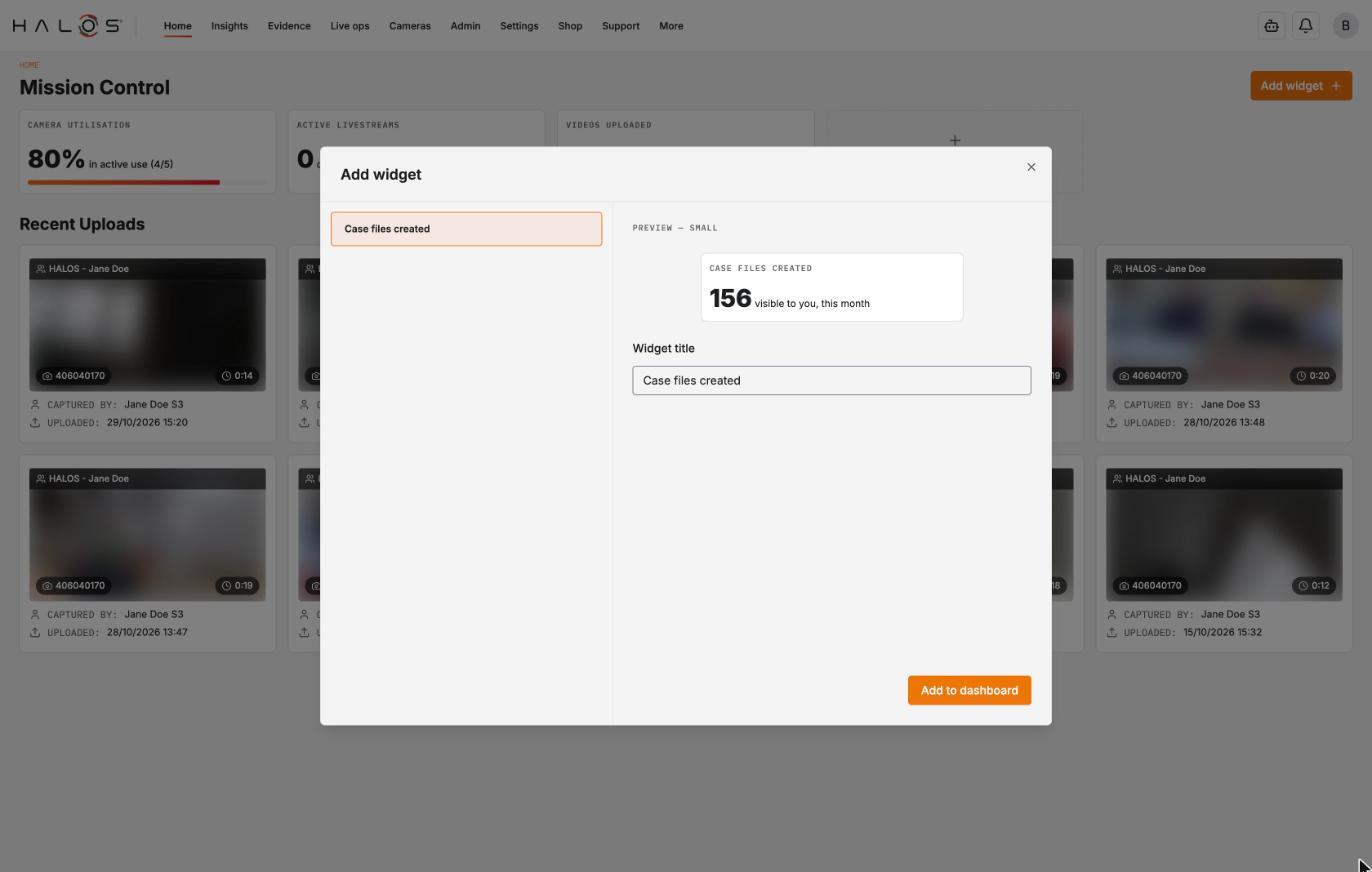
- Click Add widget at the top right, or the Add widget tile after your widgets. You only see these when there's a widget you haven't added yet.
- Choose a widget. Right now, these are Camera utilisation, Videos uploaded, Active livestreams and Case files created. A grid of your latest videos sits below the widgets.
- The window shows a preview. To give the widget your own name, change the Widget title.
- Click Add to dashboard.
You only see widgets for pages your role can open.
Remove or reorder widgets
- To remove a widget, hover over it and click the ×.
- To reorder, drag widgets into the order you want.
See the detail behind a widget
Click the Camera utilisation widget to see the detail behind it. The other widgets don't open a detail view yet.
If you're new to Vault, your home page starts with one widget. Add the others you want.