
Note
-
Remote actions are only available on Horizon cameras running the minimum required camera script version 0.20.1 or higher. To ensure your camera is up to date, please reboot the device and confirm it has a strong and stable network connection so it can receive the latest updates
-
This feature is currently not available on Nano cameras
- An active internet connection is required for the camera to accept and respond to remote action requests
- Users must have the correct permissions to access the Remote Camera Controls section in Vault
-
If you are interested in enabling this feature, please reach out to our support team.
Remote camera controls allow authorised users to start and stop a livestream or recording directly from Vault
To remotely start or stop a livestream or recording:
- Ensure the device is turned on and has a strong network connection. Please note, if the camera is using cellular / mobile data, using remote actions may increase battery consumption
- Log in to your account via the Vault login page:
- UK Login: app.halovault.cam
- US Login: app.halovault.us
- UK Login: app.halovault.cam
- Navigate to the Cameras section from the sidebar menu
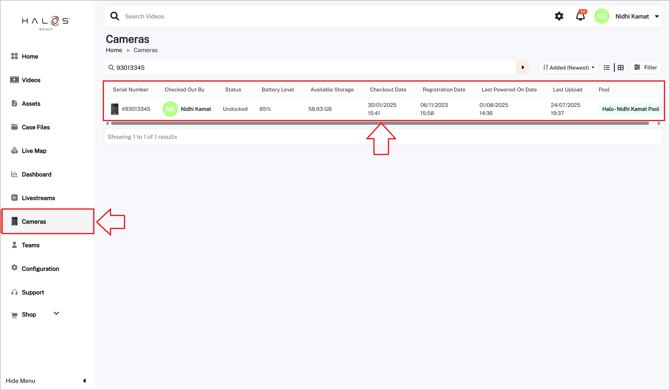
- From the camera list view, select the device you want to control. This will open the Camera Details page. On the right side of the page, you will see the Remote Camera Control section. If you do not see this section, you likely do not have permission and may need to request this from your admin or our support team
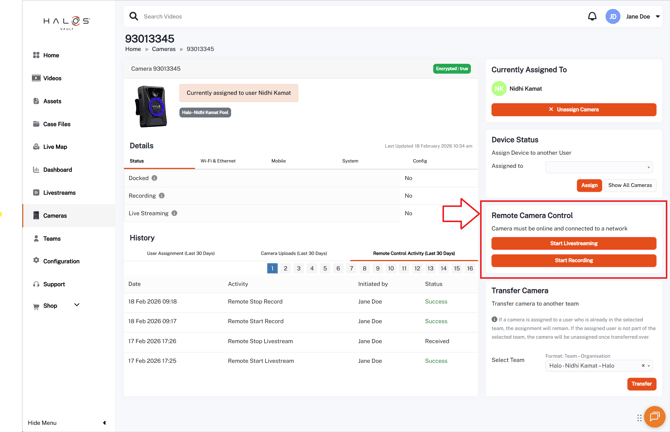
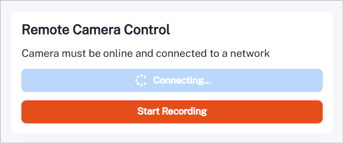
- Click the Start Livestreaming or Start Recording button. This will send the request to the camera and may take a few seconds
- If the connection is successful, the selected action should start on the device and you will be able to see a Livestream started or Recording started confirmation message appear in Vault
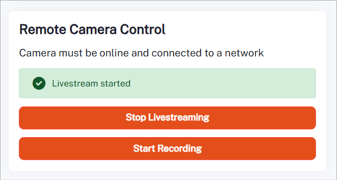
- This remote connection remains active while you are on this page and will automatically close after 5 minutes of inactivity
- To stop livestreaming or recording, click the button again. A confirmation message will appear once the action has been completed.
- All remote actions are logged in the Remote Control Activity tab under the History section of the Camera Details page. Activity history shows up to the last 30 days. Audit entries do not update in real time - refresh the page to view the latest status. If you do not see this section, you likely do not have the required permission.
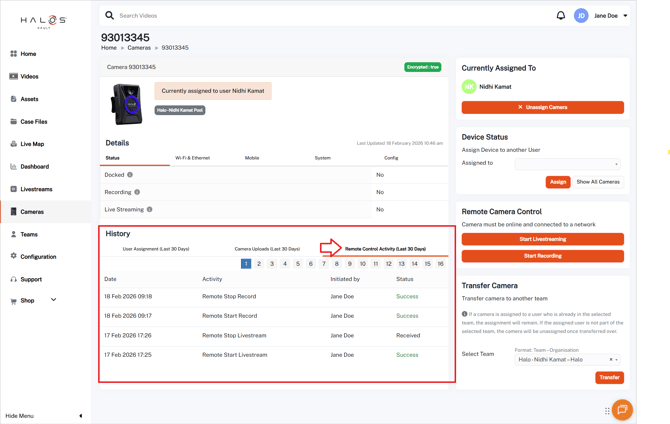
Remote Control Activity Fields Explained
| Field | Description |
| Date | The date and time when the remote action was initiated from Vault |
| Activity |
The type of remote action performed (e.g., Remote Start Livestream, Remote Stop Record) |
| Initiated by | The name or email address of the user who triggered the remote action in Vault |
| Status |
The outcome of the remote action request. Possible values include:
|
💡Troubleshooting Tips
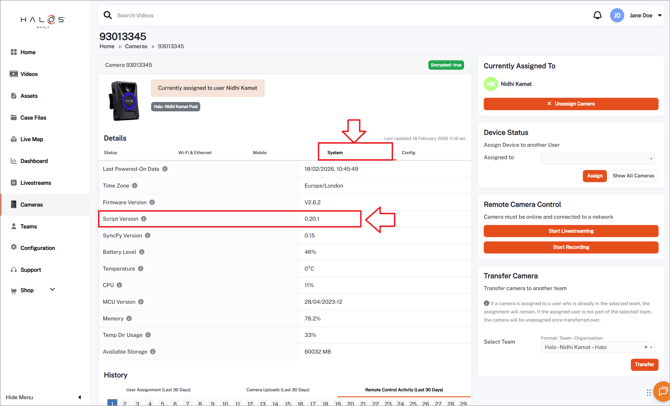
- If you are having issues with remote actions, ensure your device in turned on and has a strong internet connection. Reboot the camera and confirm it is on script version 0.20.1 or higher. You can view this in the Camera Details page, under the Details section in the System tab
- If you can't view the Remote Camera Control or Activity section in Vault, you likely do not have permission and may need to reach out to your admin or contact our support team
- If the Remote Camera Control section displays "Camera unavailable for remote actions" with the Start Livestreaming and Start Recording button greyed out, the feature likely needs to be enabled on your camera. Please reach out to our support team