Please note: This guide is for the new Vault. If your Vault has a menu down the left side, see Redacting videos in the Vault section.
Who can use this: Redaction is switched on by HALOS Support for organisations that include it. If you don't see these options, ask your org admin to contact HALOS Support.
- Go to the Evidence tab at the top of the screen, click into Videos, and open the video you want to redact.
- You’ll need a clip to work from, as redactions are always applied to a clip rather than the original footage. To create one, click the scissors icon at the bottom of the video, set your start and end points, and choose your settings (resolution, description, and whether to include the description and timecode on the clip), then click Create Clip.
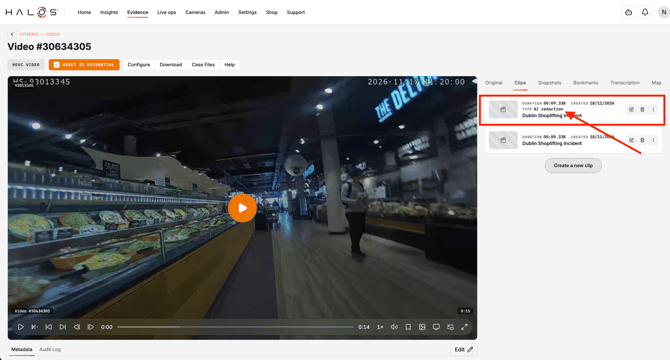
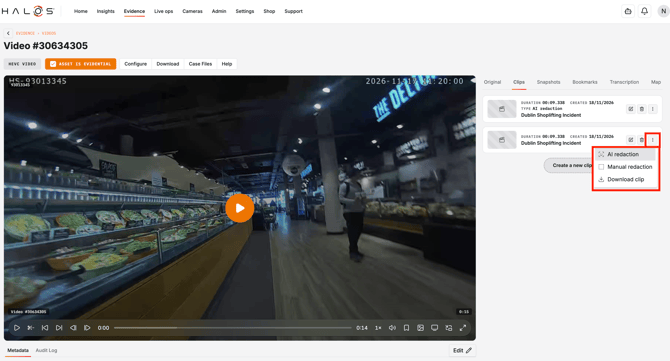
Alternatively, choose an existing clip from the Clips tab on the right. - In the Clips tab, click the ⋯ menu next to the clip and choose AI Redaction. This will open the HALOS AI Redaction Studio, which may take a few seconds to load depending on the size of the video
- Once the studio opens, you’ll see your clip in the middle, the Detections panel on the left, and the Progress panel on the right.
- Click the Detect button near the top left.
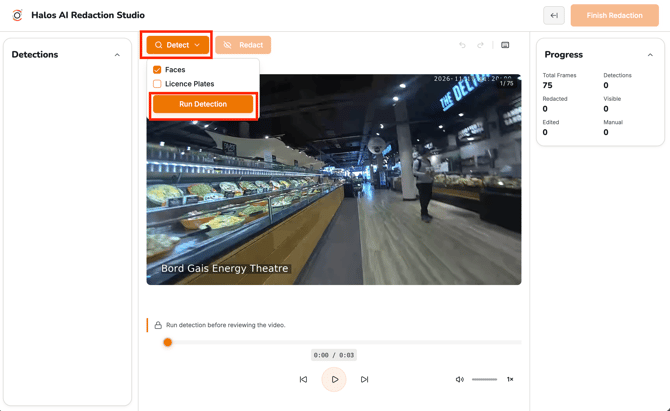
- Select what you want to redact (Faces and/or Licence Plates), then click Run Detection. This may take a few seconds, and you’ll see a confirmation once it’s complete.
- Review the detections. If anything shouldn’t be blurred, such as someone who needs to remain visible or an incorrect detection, click Unredact in the Progress panel.
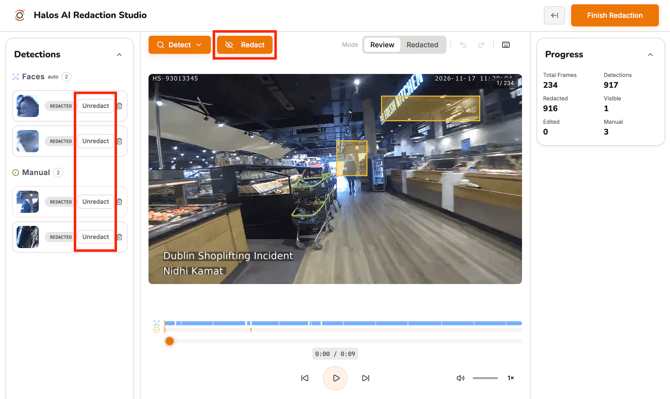
- Click the Redact button. A processing box will appear at the bottom right, followed by a confirmation when the redaction is complete.
- Switch to Redacted mode and play the clip to check the result.
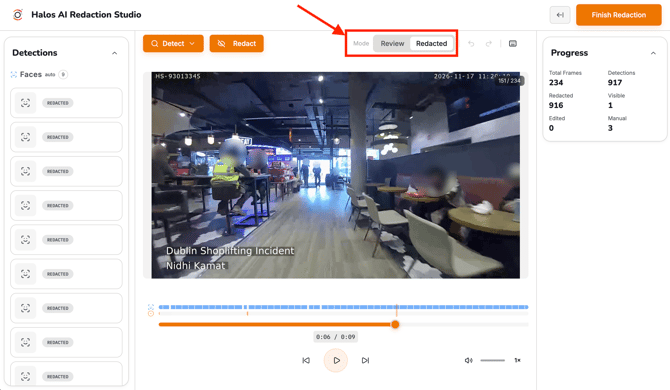
- For any frames that weren’t picked up, switch back to Review mode, go to that frame, and drag over the area of the video you want to redact.
- Click Redact again to apply your changes.
- Switch back to Redacted mode to double check that everything is now covered.
- When you’re satisfied, click Finish Redaction at the top right. You’ll see a confirmation message, and the redacted clip will appear in the Clips tab, labelled with the type AI Redaction.