
This feature allows you to manually redact objects in a video
To redact a video:
- You must first create a clip of the video. Follow instructions outlined here.
- Tip! We recommend trimming any parts of the video you don't need to share after redacting to reduce the effort of redacting.
- Once you have successfully created your clip, you will be able to view additional actions in the Actions column of your created clip.
 is manual redaction. If your organization has an appropriate plan, you may also see
  which is AI-driven redaction.
For manual redaction:
- Click the redaction symbol
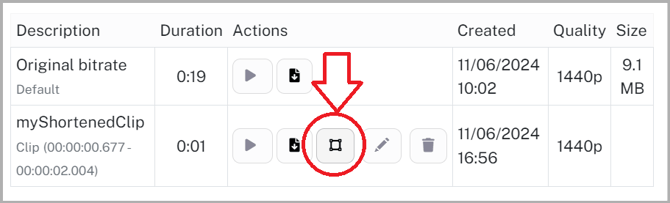
In the new videos experience, this appears as a dotted rectangle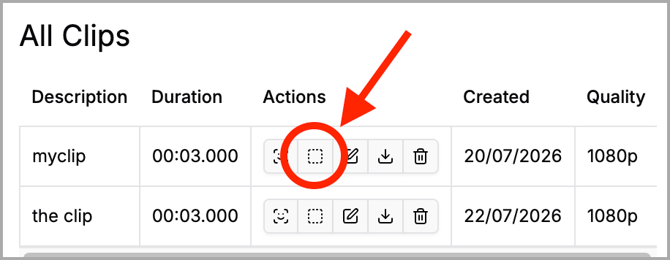
- A redaction video editor view will be displayed. Drag your cursor over the area of the video to redact. Your selection will be highlighted in green
- Tip! We recommend changing the speed of the playback to 0.25 to accurately redact specific objects in the video. This is placed just below the video on the right.
- Play the video and drag the green box around the clip as it plays
- Each redacted area will appear as an Annotation in the right hand side table. Here, you can go back through each frame and delete any redacted boxes that are no longer required
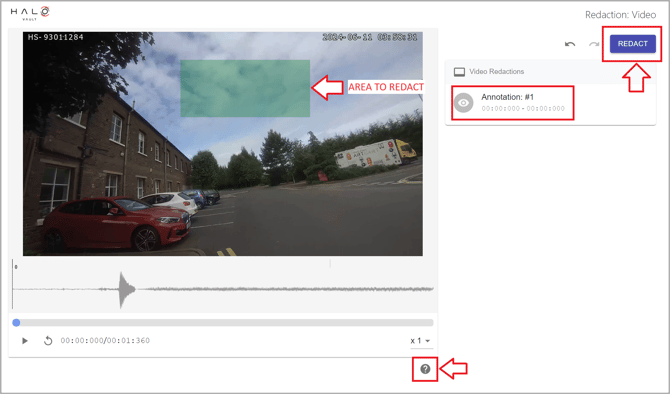
- Once you have finished your redactions, click the Redact button
- If you are still unsure, you can also click the❔ icon below the clip for more detailed instructions on how to redact your videos
AI Redacting videos
- Click the AI Redaction symbol
 . If you don't have any credits left, you won't be able to proceed to the AI Redaction Studio.
- The page will redirect to the AI Redaction Studio
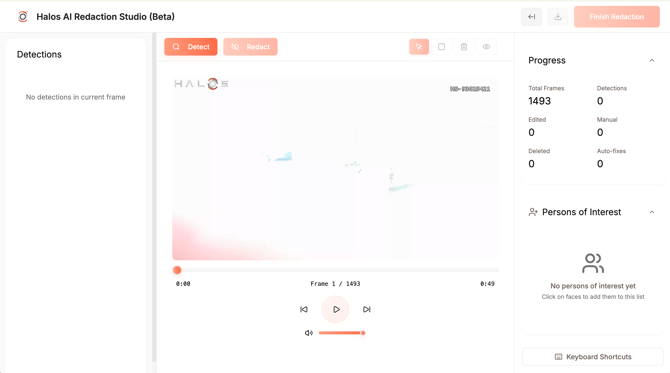
- Before you can process any redactions, you must first perform a detection. Detection will run in the background, so don't worry if it's a long video, you can navigate away and come back later.
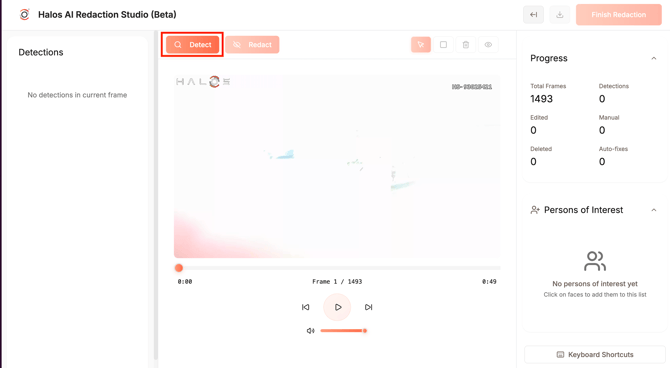
- Once detection is complete, you can review the detections in the video by playing the video or navigating frame by frame.
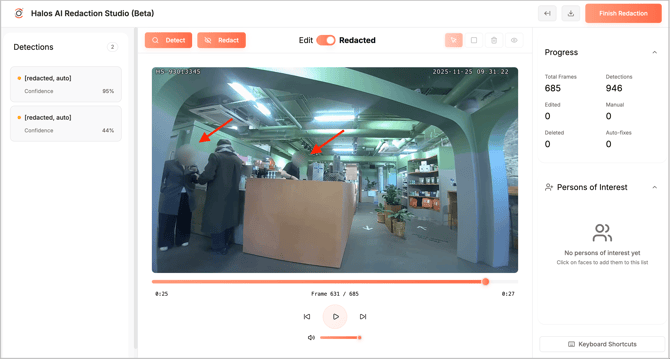
- Tip! running the redaction and viewing the redacted video is a good way to manually spot check for any missed detections (e.g. an obscured face the system missed). Once a redaction is generated, there is a toggle to go back forth between the detection view and the redacted view without losing your place.

- Tip! running the redaction and viewing the redacted video is a good way to manually spot check for any missed detections (e.g. an obscured face the system missed). Once a redaction is generated, there is a toggle to go back forth between the detection view and the redacted view without losing your place.
- You can manually add a detection if the automated detection missed something similar to the existing HALOS manual redaction using the
 icon
icon - Run the redaction again after you're done with any manual edits.
- Once you've reviewed the video and are satisfied everything is redacted, click Finish Redaction and you'll be returned to the Edit Video screen
For all redactions, clips that have been successfully redacted will appear in the Edit Video section