
Please note: This guide is for the new Vault. If your Vault has a menu down the left side, see Managing your cameras in the Vault section.
Find a camera
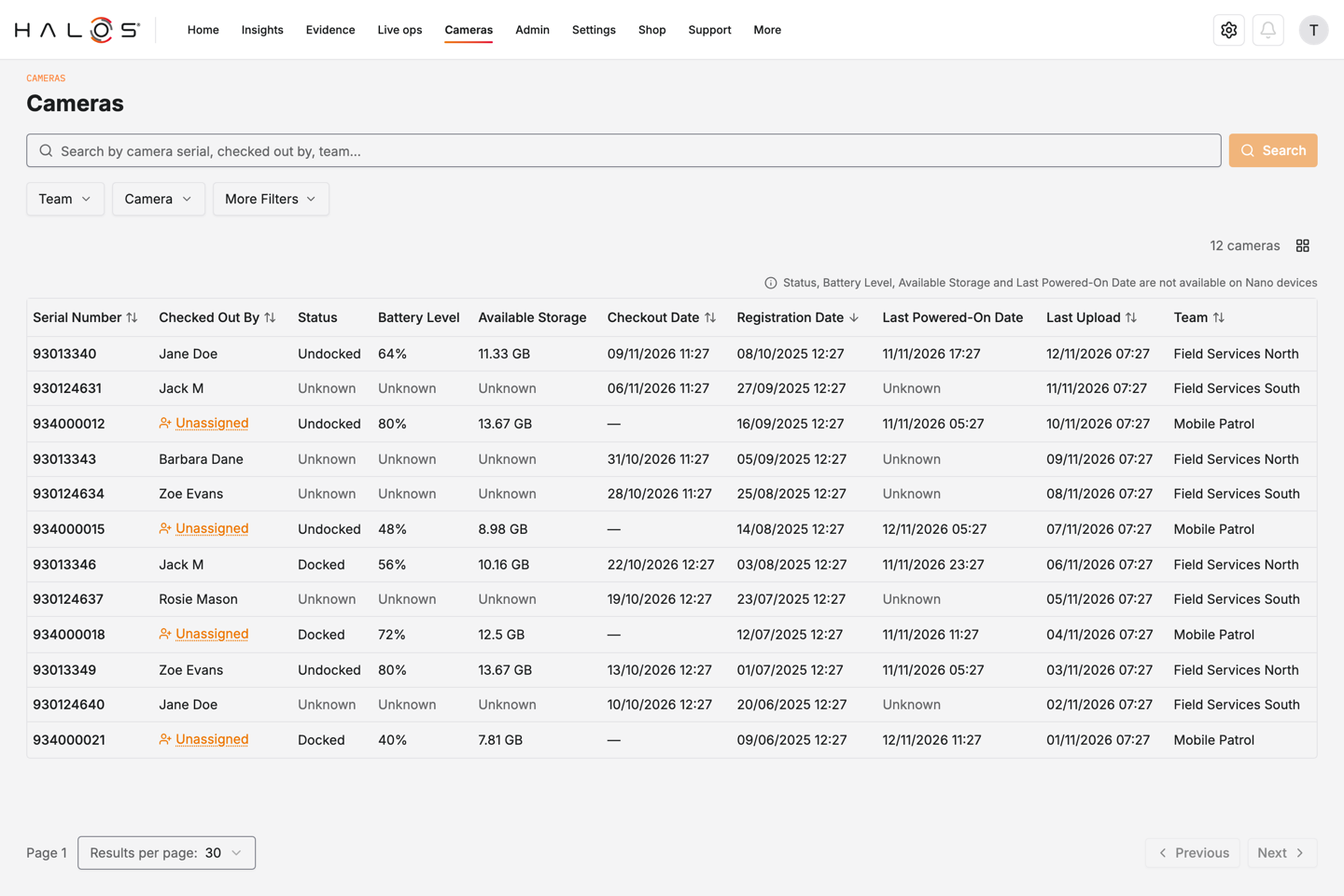
- Click Cameras in the top menu. You see the cameras in your teams, with serial number, who has each one, checkout date, registration date, last powered-on date, last upload and team.
- Type a serial number, team, or the wearer's name or email, then press Search.
- To narrow the list, filter by Team, or open More Filters to filter by camera status (assigned or unassigned) or last upload date. Clear all removes the filters.
- Switch between list and grid. You can show 30 or 60 cameras per page.
- Click a camera to open its page.
Your filters are saved in the page link, so you can copy it and send it to a colleague.
See what a camera uploaded
- Open the camera's page.
- Open the Camera Uploads (Last 30 Days) tab.
- Click a day to see that day's videos from the camera.
The camera page also has a User Assignment (Last 30 Days) tab and, for Horizon cameras with remote control, a Remote Control Activity tab.