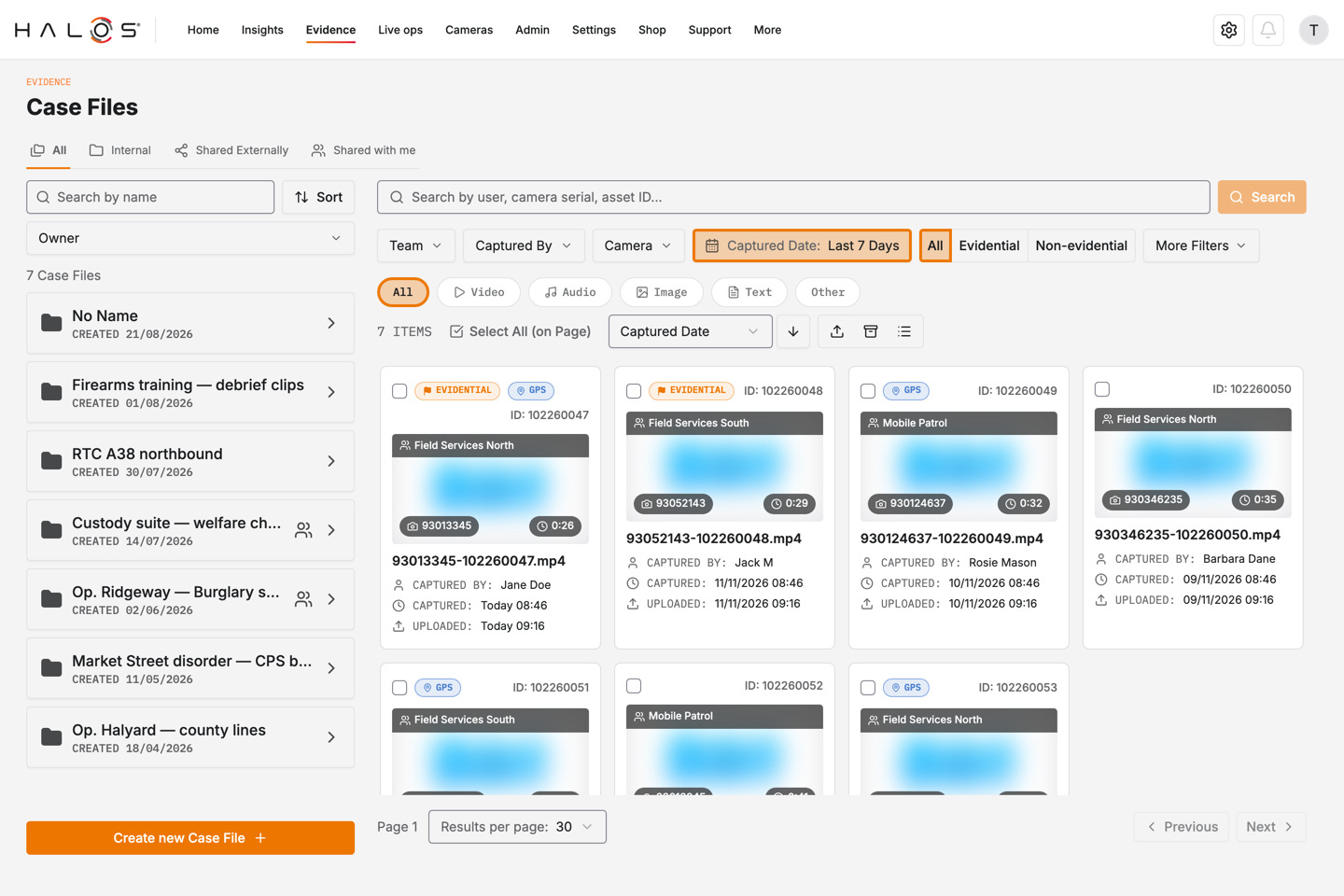
Please note: This guide is for the new Vault. If your Vault has a menu down the left side, see Which Vault am I using?
- Open Evidence, then Case files. In field service organisations this is Job Files.
- Choose a tab:
- All: your case files and the ones shared with you.
- Internal: case files you've shared inside your organisation.
- Shared Externally: case files shared outside your organisation. Switch between Active and Expired.
- Shared with me: case files other people have shared with you.
- Type in Search by name, or sort by Newest – oldest, Oldest – newest, A–Z, Z–A or Last modified. On All and Shared with me you can also filter by Owner.
- Hover over a case file to see its notes, owner, item count and who it's shared with.
- Click a case file to open it beside the list. Click it again to close it.
The list shows 30 case files at a time. Click Load more to see more. The page link includes the open case file, so you can copy it and send it to a colleague who has access.