This feature is useful if you want to create images of specific frames in the video
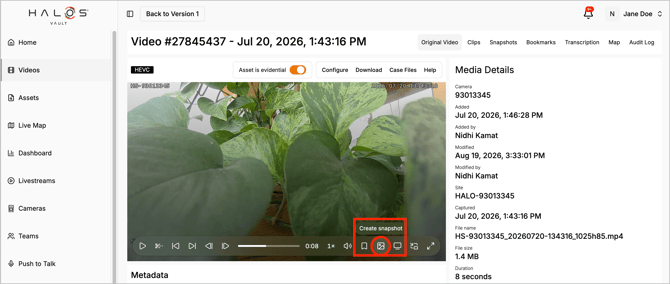
Please note: We recently launched a new and improved video experience, which you can currently access via the blue banner on the existing video page. In the new experience, you can create a snapshot by clicking the snapshot icon located at the bottom of the video player. See the instructions towards the end of the article for more details.
To create a snapshot of a video:
- Log in to your account via the Halo Vault login page:
- UK Login: app.halovault.cam
- US Login: app.halovault.us
- Navigate to the Videos section from the sidebar menu
- Click on the video you want to create a clip from. This will open a more detailed view of the selected video
- Click the Edit Video button above the clip
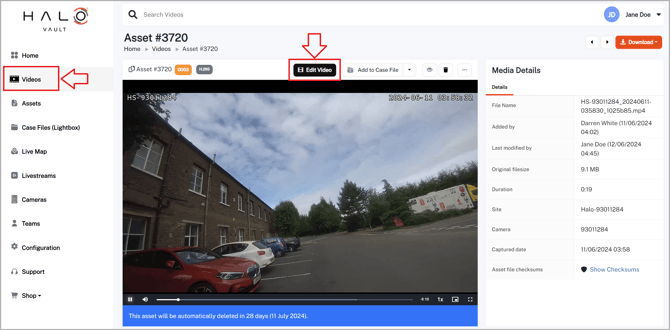
- The Edit Asset page will be displayed with a Video Editor and Create New section. Navigate to the Snapshots tab in the Create New section
- Pause the video at the point you want to snapshot
- Click the Take Snapshot button
- A prompt will appear for you to enter a name for your snapshot
- Click Save to create the snapshot. Once processed, your snapshot will appear on the right-hand side table
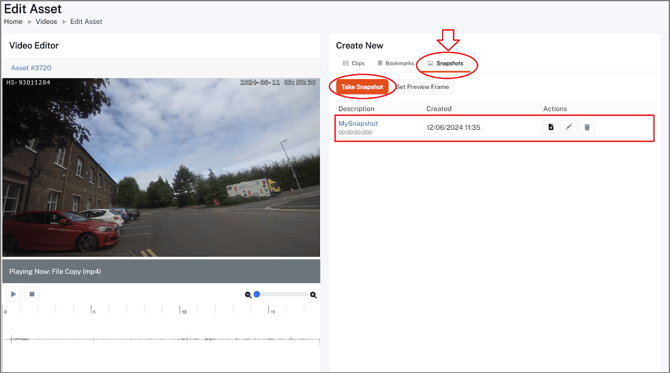
- In this table, you will also be able to view 3 symbols in the Actions column of your created snapshot. These allow you to:
- Download
- Edit
- Delete
New Videos Experience
To create a bookmark in the new experience
- Log in to your account via the Halo Vault login page:
- UK Login: app.halovault.cam
- US Login: app.halovault.us
- Navigate to the Videos section from the sidebar menu
- Click on the video you want to add bookmarks. This will open a more detailed view of the selected video
- Move to the point in the video you want to add a bookmark
- Click the Snapshot icon located at the bottom right of the video player
-
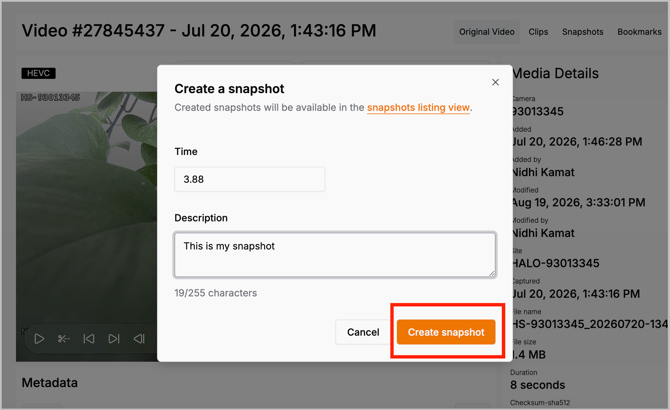
A window will open where you can confirm the snapshot timestamp. From here you can also:
- Adjust the timestamp
- Add a description
- Once you have reviewed your settings, click Create Snapshot to create the snapshot.
- To view your created snapshots, click the Snapshots tab in the top right menu bar
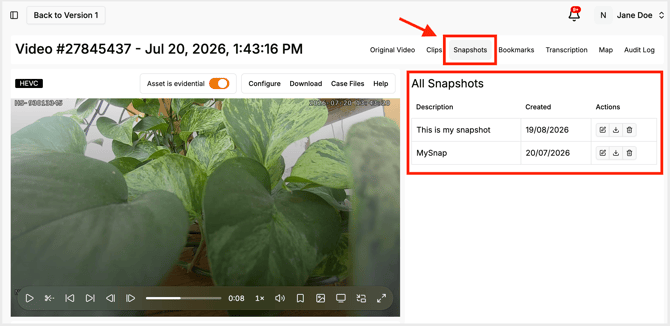
- For all snapshots created, you will be able to view 2 symbols in the Actions column. These allow you to:
- Edit description
- Delete