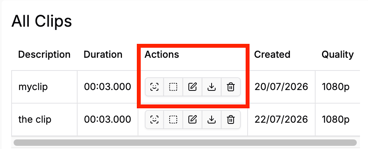
This feature is useful if you have a long video but only require a certain section of it.
Please note: We recently launched a new and improved video experience, which you can currently access via the blue banner on the existing video page. In the new experience, you can create a clip by clicking the scissors icon at the bottom of the video player. See the instructions towards the end of the article for more details.
To create a shorter clip of a video:
- Log in to your account via the Halo Vault login page:
- UK Login: app.halovault.cam
- US Login: app.halovault.us
- Navigate to the Videos section from the sidebar menu
- Click on the video you want to create a clip from. This will open a more detailed view of the selected video
- Click the Edit Video button above the clip
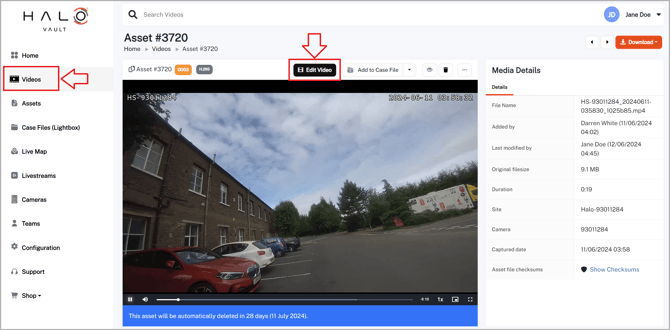
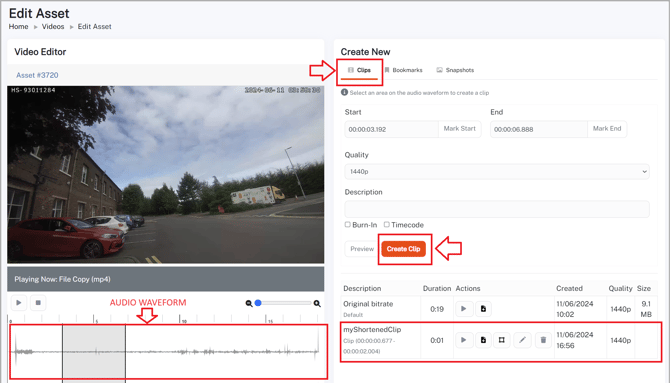
- The Edit Asset page will be displayed with a Video Editor and Create New section. Navigate to the Clips tab in the Create New section
- Select the section of the video you need by either dragging your mouse across the audio waveform below the video or entering the Start and End time on the right
- Update the Quality and Description if required
- Check the Burn-In or Timecode checkboxes if required
- Burn-In: This checkbox will add the name of the logged in user to the created clip
- Timecode: This checkbox will add the time of the original video to the created clip
- Once you're happy with your selection and settings, click the Create Clip button. This may take some time to process depending on the length and quality of the clip
- Once successfully processed, your newly created clip can be view in the bottom right table
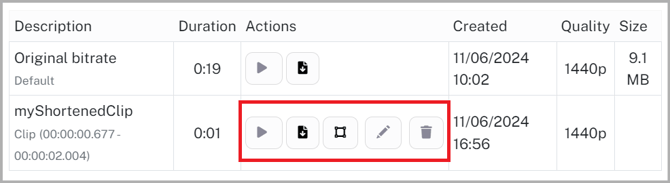
- You will be able to view 5 symbols in the Actions column of your created clip. These allow you to:
- Play
- Download
- Redact
- Edit
- Delete
New Videos Experience
To create a clip in the new experience
- Log in to your account via the Halo Vault login page:
- UK Login: app.halovault.cam
- US Login: app.halovault.us
- Navigate to the Videos section from the sidebar menu
- Click on the video you want to create a clip from. This will open a more detailed view of the selected video
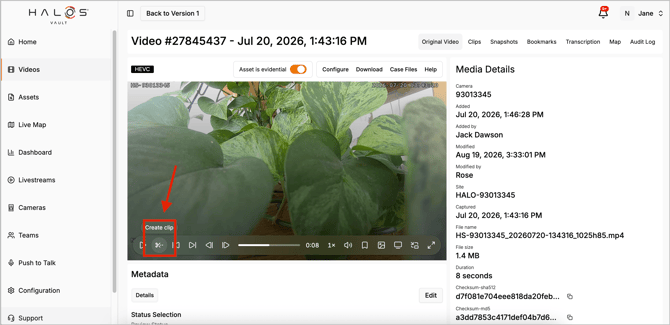
- Click the Scissors icon located at the bottom of the video player
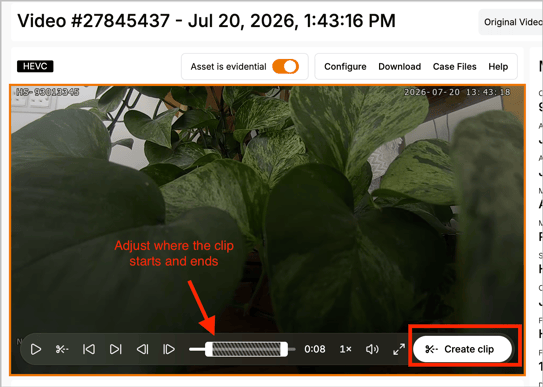
- The video player will be highlighted in orange to indicate that you are in Clip Mode. Drag the markers on the video timeline to adjust the start and end points of your clip
- When you are happy with your selection, click Create Clip.
-
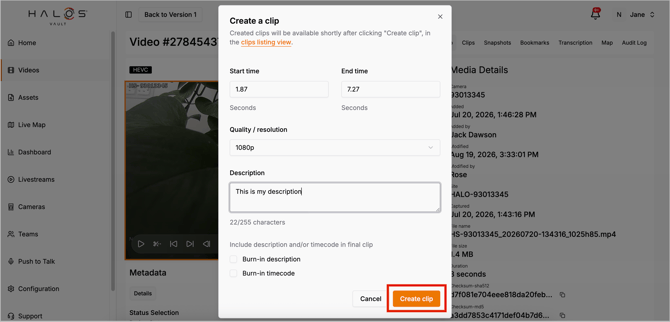
A window will open where you can confirm the clip's start and end times. From here you can also:
- Adjust the video quality and resolution
- Add a description
- Add a burn-in description or timecode
- Once you have reviewed your settings, click Create Clip to create the clip.
- To view your created clips, click the Clips tab in the top right menu bar
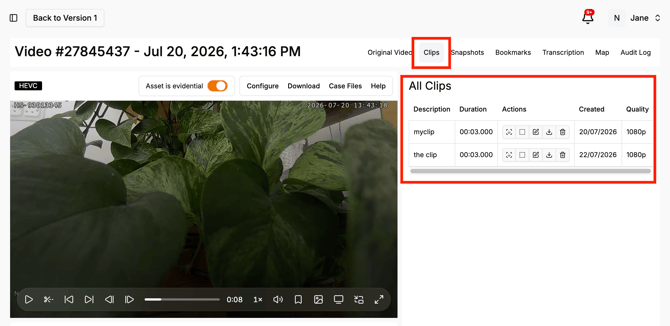
- For all clips created, you will be able to view 5 symbols in the Actions column. These allow you to:
- AI Redact (if you have access)
- Manually Redact
- Edit Description
- Download
- Delete