Please note: This guide is for the new Vault. If your Vault has a menu down the left side, see Creating case files in the Vault section.
A case file groups the videos and other files for one incident or job, so you can keep them together and share them.
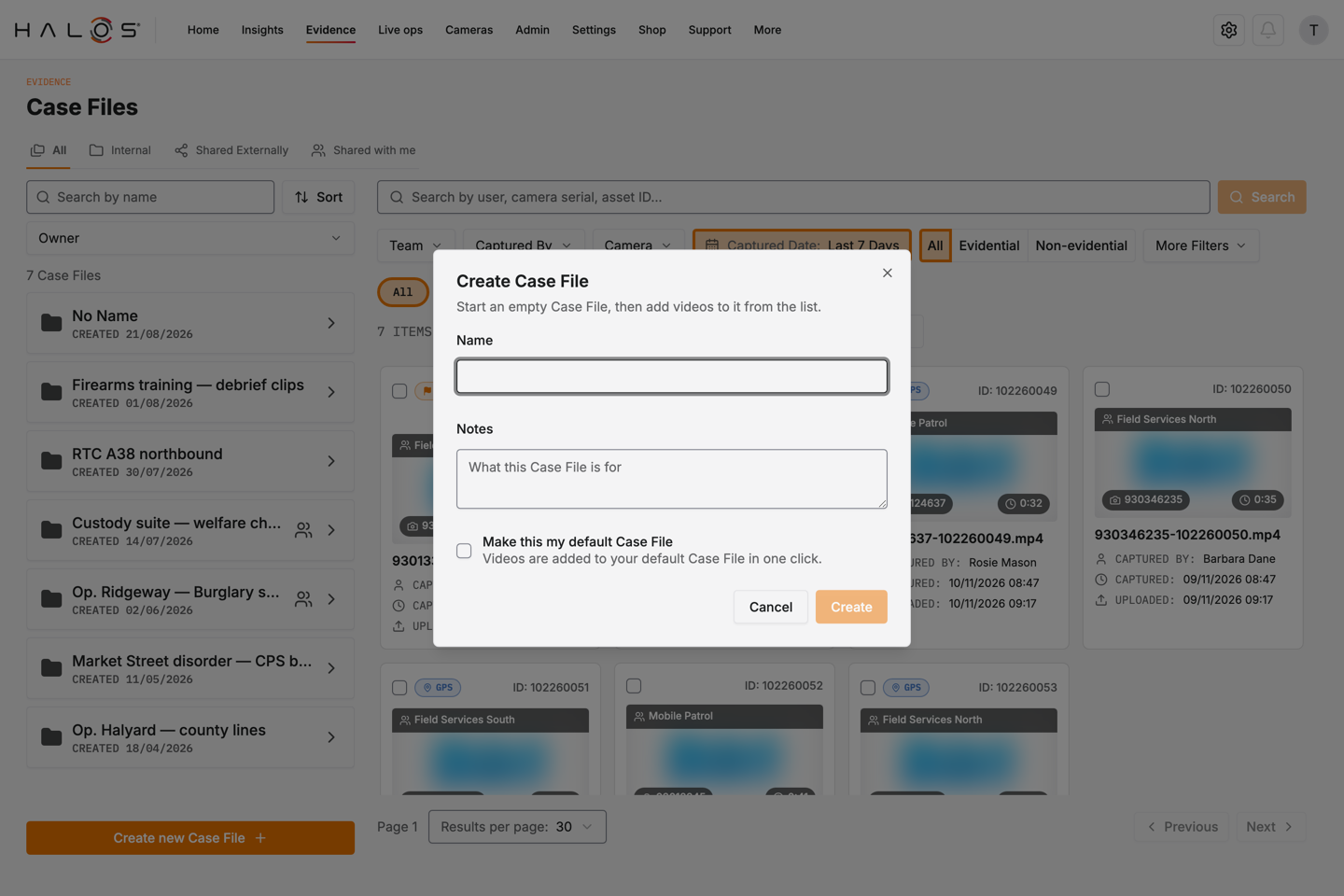
- Open Evidence, then Case files.
- Click Create new Case File under the list.
- Enter a Name that identifies the incident or job. You can add Notes too.
- To make it the case file you add to most, tick Make this my default Case File.
- Click Create. Your new case file opens beside the list.
You can also create a case file from a video's page: open the Case Files menu and choose Create Case File.