
Please note: This guide is for the new Vault. If your Vault has a menu down the left side, see Assigning or Unassigning your cameras in the Vault section.
Note: Every camera must be assigned to a user before it can upload footage to Vault.
Assign a camera
- Click Cameras in the top menu.
- Find the camera and click Unassigned on its row.
- Pick a user. Only people in the team who don't already have a camera are listed. The camera is assigned straight away.
OR
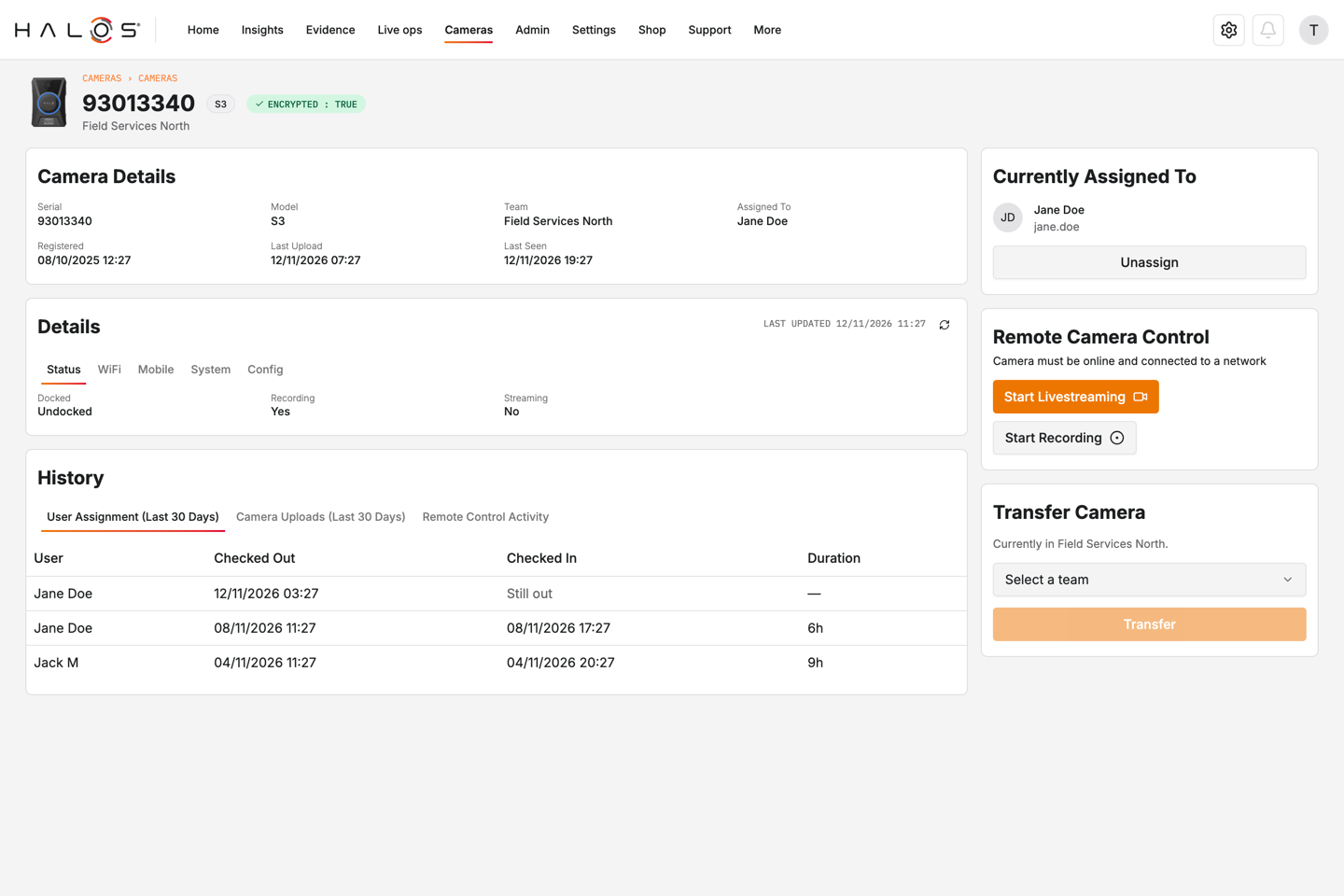
- Open the camera's page.
- In the Currently Assigned To panel, pick a user and click Assign. If the camera already has a wearer, this reassigns it in one step.
- If Vault says the person already has a camera, unassign that camera first.
Unassign a camera
- Open the camera's page.
- In the Currently Assigned To panel, click Unassign.
Move a camera to another team
- Open the camera's page.
- In the transfer panel, choose the new team and click Transfer.
- If the camera is assigned, Vault warns you that moving it will unassign the wearer. Confirm to continue.