
Please note: This guide is for the new Vault. If your Vault has a menu down the left side, see Adding videos or assets to a case file in the Vault section.
From the videos or assets list
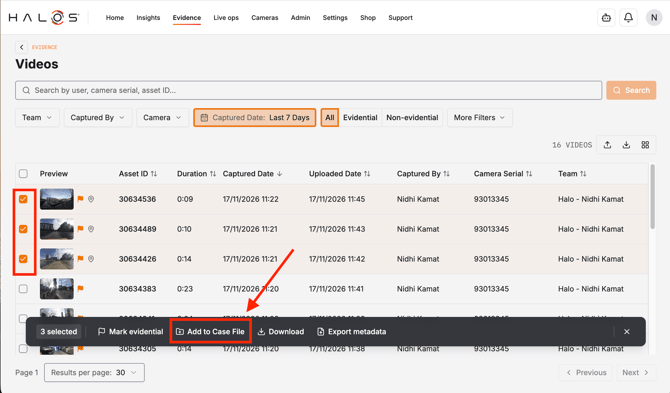
- Open Evidence, then Videos (or Assets).
- Tick the items you need.
- Choose Add to Case File, then pick the case file from the list. Your default case file is marked (default).
From a video's page
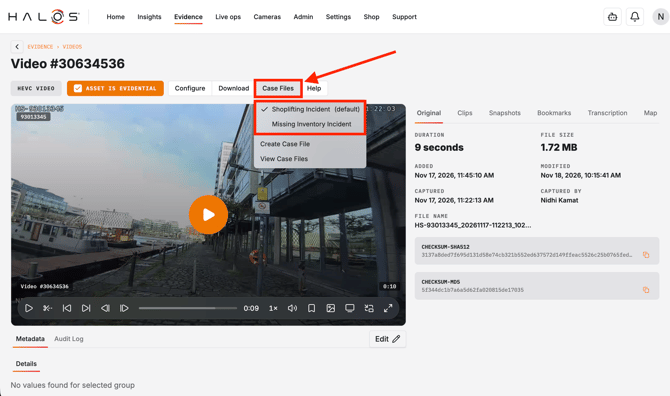
- Open the video's page.
- Open the Case Files menu at the top of the page and choose the case file. Your default is first in the list. You can also choose Create Case File or View Case Files from here.
If your organisation uses evidential marking, items you add from the list are marked evidential too.
You can add to your own case files, and to ones shared with you if the owner lets you add and remove videos.